Live View
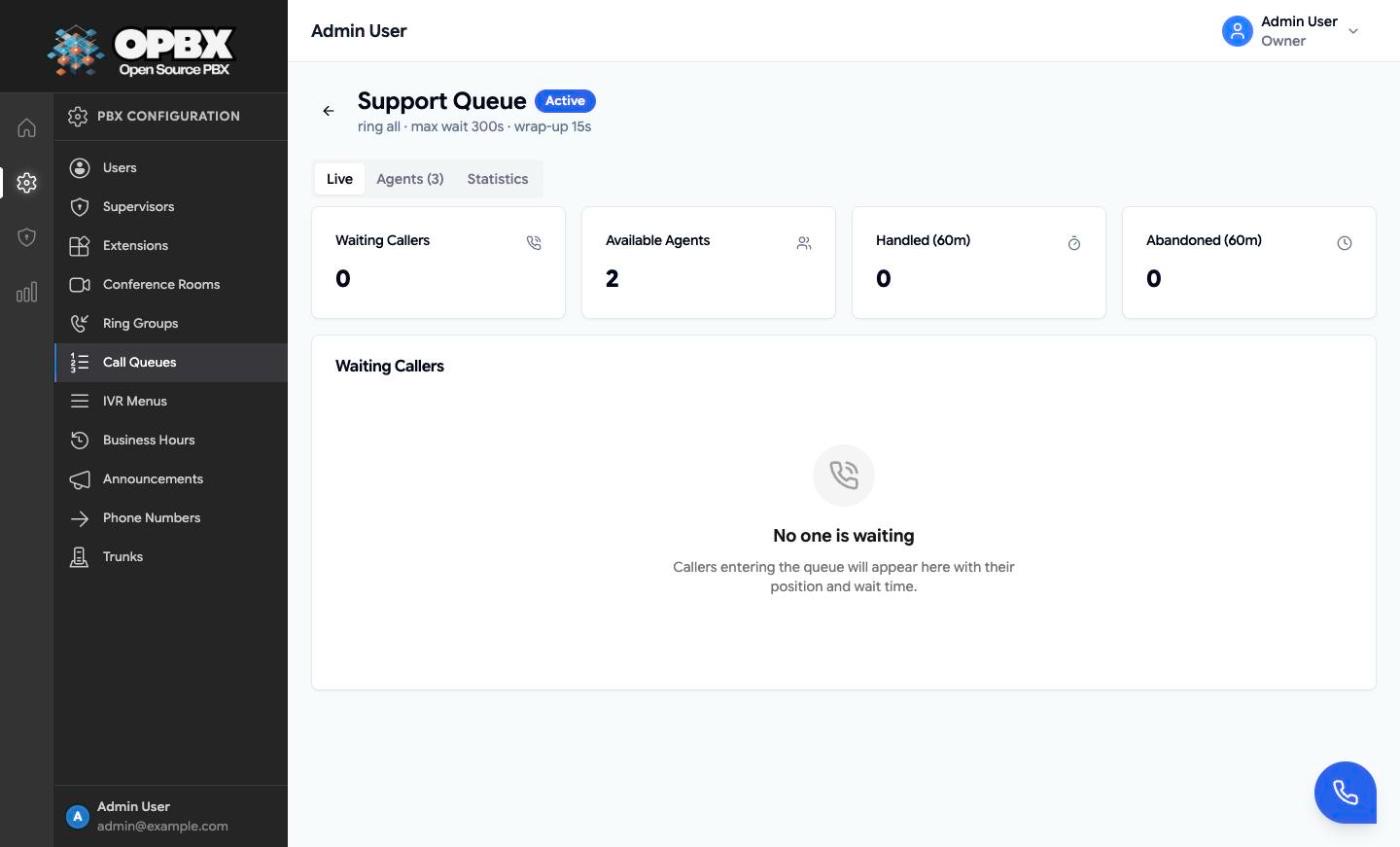
Each queue's detail page has three tabs: Live (waiting callers and counters, see Watch a queue live), Agents (agent states, see Log an agent in or out) and Statistics (see View queue statistics). This page covers the Live and Statistics tabs. To open the detail page, click the queue's row on Call Queues. To watch all queues on one screen, use the Queues Dashboard.
Permissions
Owner, PBX Admin and Reporter can open the detail page and its statistics. PBX Users can read queues and statistics only through the API. Supervisors have API-only, read-only access, for queues where their assigned users (or they) are agents. See Call Queues for the full table.
Workflows
Watch a queue live
Who can do this: Owner, PBX Admin, Reporter.
- On Call Queues, click the queue's row.
- The Live tab shows Waiting Callers, Available Agents, Handled (60m) and Abandoned (60m), and a table of waiting callers with position, wait time, average wait (24h), caller ID, destination and call start. It refreshes every 5 seconds.
View queue statistics
Who can do this: Owner, PBX Admin, Reporter.
- Open the queue's detail page and the Statistics tab.
- Read Waiting Time (answered calls) and Handling Time (answered calls) (Min, Max, Average, Std Dev) and Totals (last 24 hours): Handled, Abandoned and Overflowed.
The tab covers the last 24 hours and refreshes every 30 seconds. The API (GET /v1/call-queues/{id}/stats) also accepts from and to. The Queue Reports link opens the per-call report (see Queue Reports).
Related modules
- Call Queues — create and configure queues
- Agents — the detail page's Agents tab
- Queues Dashboard — all queues on one screen, and the public wallboard
- Queue Reports — one row per queued call
- Live Calls — every active call, not only queued ones