Trunks
A trunk is a SIP connection between Cloudonix and a telephony provider or PBX equipment. Inbound trunks carry calls from a provider into OPBX. Outbound trunks carry calls from your extensions out to the public telephone network.
The Trunks page is a window onto the trunks stored in Cloudonix for your domain. OPBX does not keep its own copy: each change is sent to Cloudonix straight away.
Purpose
Use this module to:
- add a provider's SIP trunk, inbound or outbound;
- change its address, transport, prefix or credentials;
- remove a trunk that is no longer used.
Prerequisites
- Your organization's Cloudonix integration is configured. See Cloudonix Setup and Settings. Without it, the list shows "Failed to load trunks".
- You are the Owner or a PBX Admin. Other roles do not see the Trunks item in the sidebar, cannot open the page, and the API refuses them with 403.
- You have the provider's SIP address (IP or hostname), port and transport, and any username and password the provider requires.
Fields
| Field (page label) | Required | Limit | Meaning |
|---|---|---|---|
| Name | Yes | 3 to 64 characters | Identifies the trunk. Outbound whitelist rules refer to it by name. Cannot be changed after creation |
| Direction | Yes | Inbound or Outbound. Default: Outbound | Which way calls flow on this trunk. Cannot be changed after creation |
| Address | Yes | Up to 255 characters; an IPv4 or IPv6 address or a host name | The provider's SIP address |
| Port | Yes | 1 to 65535. Default: 5060 | SIP port |
| Transport | Yes | UDP, TCP or TLS. Default: UDP | SIP transport |
| Prefix (optional) | No | Up to 20 characters | Prepended to incoming calls |
| Username | No | Up to 128 characters. Needed with a password | Authentication user name, under Authentication |
| Password | No | Up to 128 characters. Needed with a username when you create the trunk | Authentication password, under Authentication |
| Overwrite From header | No | On or off. Default: off | Sets the outbound From header to the authentication username. Sent to Cloudonix only together with a username or password |
Direction
Cloudonix stores a trunk created as Inbound as public-inbound, and one created as Outbound as public-outbound. The Trunks page shows both forms as Inbound or Outbound.
Authentication
Authentication is optional. When you create a trunk, a username without a password, or a password without a username, is refused ("A password is required when a username is provided." / "A username is required when a password is provided.").
The password is write-only: the page never shows a stored password. When you edit a trunk, the Password field says "Leave blank to keep unchanged". A username alone keeps the stored password; a password needs a username. Emptying the username removes the stored username and password.
SIP addresses: the configuration cheatsheet
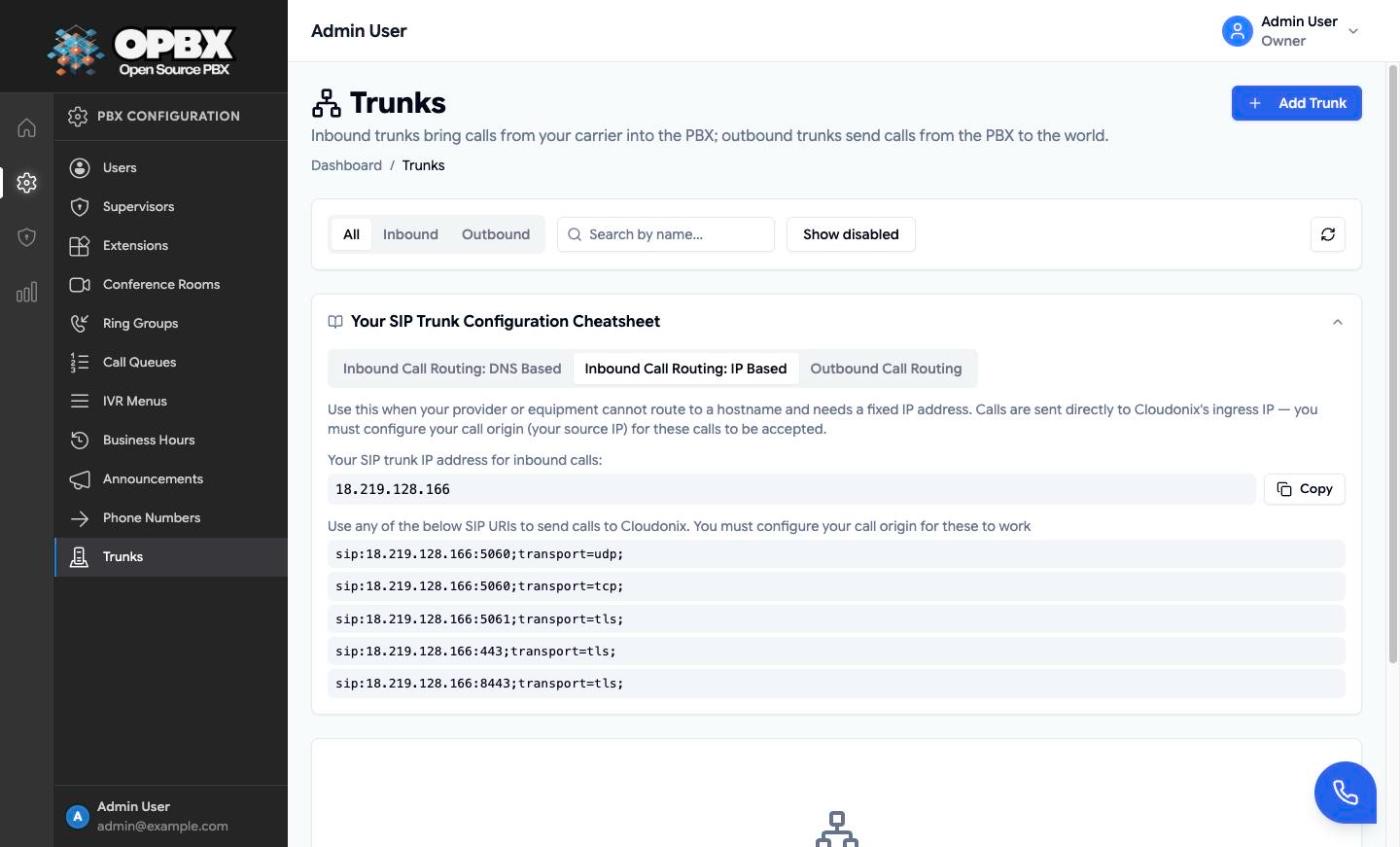
The Your SIP Trunk Configuration Cheatsheet panel on the Trunks page lists the addresses to give your provider. Click it to expand. It has three tabs:
| Tab | What it shows |
|---|---|
| Inbound Call Routing: DNS Based | The recommended option. Your domain's SIP hostname (<domain uuid>.sip.cloudonix.net) with a Copy button, and the SIP URIs for UDP and TCP on port 5060 and TLS on 5061, 443 and 8443. Shows "Cloudonix settings not configured." when the hostname is not known |
| Inbound Call Routing: IP Based | The fixed Cloudonix signalling IP with a Copy button and the same ports. Your provider must send calls from a call origin (source IP) that Cloudonix accepts |
| Outbound Call Routing | The Cloudonix source IP for outbound calls. Configure your provider to accept and authenticate SIP signalling from it |
Workflows
Add a trunk
Who can do this: Owner and PBX Admin.
- Open Trunks in the sidebar.
- Click Add Trunk. When there are no trunks yet you can also click Create Trunk in the empty list.
- Enter the Name, choose the Direction, and enter the Address, Port and Transport.
- Enter a Prefix (optional) only if the provider needs one.
- If the provider needs authentication, click Authentication and enter the Username and Password. Turn on Overwrite From header if the provider expects the username in the From header.
- Click Create Trunk.
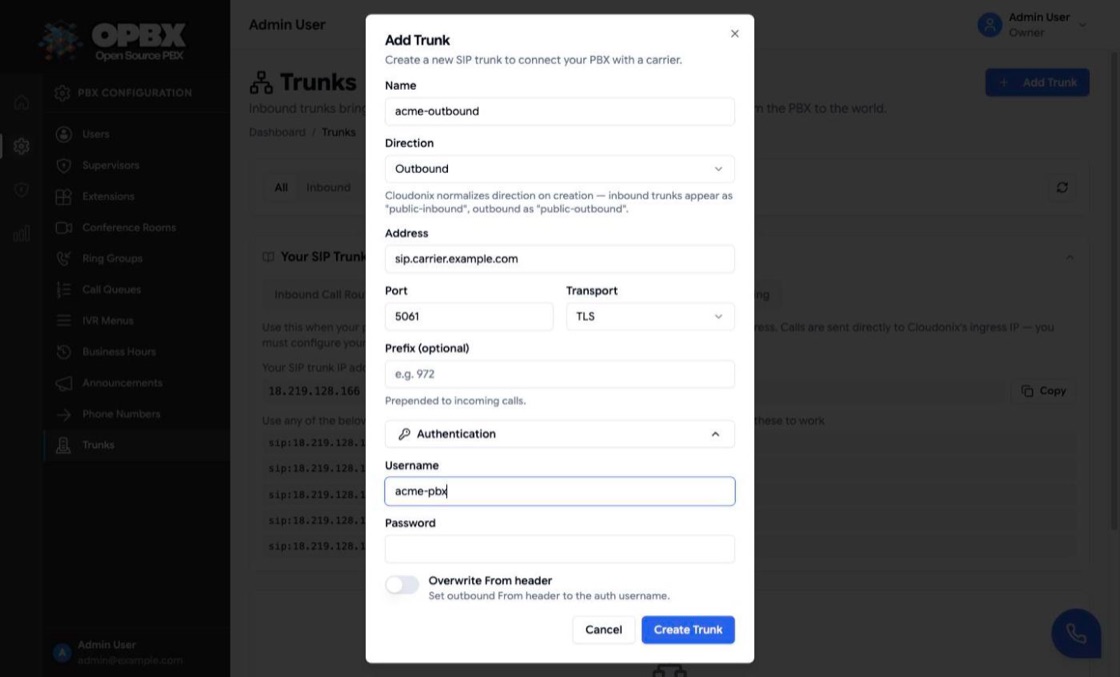
Result: the toast "Trunk created successfully" appears and the trunk is listed. A field error is shown under the field, for example "Port must be between 1 and 65535".
Edit a trunk
Who can do this: Owner and PBX Admin.
- In the Trunks list, click the trunk's name or row. The Edit Trunk dialog opens; its description says "Name and direction cannot be changed."
- Change the Address, Port, Transport, Prefix (optional) or the Authentication fields. Leave Password empty to keep the stored one. Empty Prefix (optional) to remove the prefix. Empty Username (and leave Password empty) to remove the stored username and password.
- Click Update Trunk.
Result: the toast "Trunk updated successfully" appears. The change is sent to Cloudonix immediately.
Find a trunk
Who can do this: Owner and PBX Admin.
- Click a direction tab: All, Inbound or Outbound.
- Type in Search by name....
- Disabled trunks are hidden. Click Show disabled to include them, and Hide disabled to hide them again.
- Click the refresh icon to reload the list from Cloudonix.
The list shows each trunk's Direction, Address (address, port and transport), Prefix, Auth (a key icon when credentials are stored; hover it to see the username), Status (Active or Inactive) and Created date.
Delete a trunk
Who can do this: Owner and PBX Admin.
- In the Trunks list, click the trash icon in the trunk's Actions column.
- In the Delete Trunk dialog, check the name.
- If outbound whitelist rules name the trunk, the dialog lists them ("This trunk is referenced by N outbound whitelist entries"). Tick I understand these entries may stop working to enable the button.
- Click Delete.
Result: the toast "Trunk deleted successfully" appears and the trunk leaves the list.
The in-use check is a warning only; unlike phone numbers and routing resources, a trunk in use is not refused. The listed whitelist rules then refer to a trunk that no longer exists, so update or remove them first when you can.
Errors
| Message | Meaning |
|---|---|
| Failed to load trunks / An error occurred while loading trunks | The list could not be loaded, for example because the organization has no Cloudonix integration yet. Click Retry |
| Cloudonix is unreachable, try again | Cloudonix could not be reached when the page loaded or a change was sent. Try again shortly |
| Cloudonix settings not configured. | Shown in the cheatsheet when the SIP hostname is not known |
| The ip must be a valid IPv4 address, IPv6 address, or hostname. | The Address is not an IP or host name |
| Messages under a field | The field is out of range, for example a port above 65535 or a name shorter than 3 characters |
Related API endpoints
| Method | Endpoint | Purpose |
|---|---|---|
| GET | /v1/trunks | List the trunks in Cloudonix, with meta.sip_hostname. Optional direction filter (matched against the stored value, for example public-outbound) |
| POST | /v1/trunks | Create (name, direction, ip, port, transport, optional prefix, username, password, overwrite_from) |
| GET | /v1/trunks/{trunk} | One trunk, with in_use_by (outbound whitelist rule names) |
| PUT | /v1/trunks/{trunk} | Update ip, port, transport, prefix, username, password, overwrite_from |
| DELETE | /v1/trunks/{trunk} | Delete |
{trunk} is the Cloudonix trunk id. Responses never include the password; has_credentials and username show whether authentication is set. An unknown id returns 404 "Trunk not found."; other Cloudonix errors return 502 "Unable to reach the Cloudonix API. Please try again later." Scoped API keys use the trunks resource.
See the OPBX REST API reference for full schemas.
Related modules
- Outbound Whitelist — chooses the trunk used for each outbound rule
- Phone Numbers — inbound numbers
- Settings — Cloudonix integration
- Outbound Calling Overview — how outbound calls choose a trunk and caller ID