Supervisors
A Supervisor is a team lead who watches and coaches calls but does not configure anything. Each Supervisor is assigned a set of PBX users and ring groups, and sees only calls that involve them: on the Dashboard, in Live Calls and in Call Logs.
Purpose
Use the Supervisor role to:
- give a team lead a view of their team's live and recent calls;
- let them coach those calls (spy, whisper, barge) from the Web Phone;
- keep the rest of the organization's calls, configuration, exports and user management out of reach.
A Reporter is the other read-only role. The difference: a Reporter sees all of the organization's data and cannot coach; a Supervisor sees only their assignment and can coach it.
Prerequisites
- You are the Owner or a PBX Admin. Only they can open the Supervisors page and change assignments.
- The users to supervise have the PBX User role. Owners, PBX Admins, Reporters and other Supervisors cannot be assigned.
- To coach calls, the Supervisor needs a user extension of their own. Assign it on Extensions; the user editor sets no extension for this role.
What a Supervisor can do
| Page (Supervisor sidebar) | What the Supervisor gets |
|---|---|
| Dashboard | Counters for assigned users, assigned ring groups and active calls in scope; the 5 most recent calls in scope; lists of the assigned users and ring groups |
| Live Calls | Active calls in scope, read-only, with Spy, Whisper and Barge |
| Call Logs | Call records in scope, read-only. No Export button |
| Users | Themselves and their assigned users, view only |
| Ring Groups | Their assigned ring groups, view only |
| Call Queues | No page access: the sidebar shows Call Queues, but opening it returns to the Dashboard with an Access denied toast. Through the API, read only: the queues where one of their assigned users, or the Supervisor, is an agent (list, detail, agents and live status) |
Every other page sends a Supervisor back to the Dashboard with "Access denied — Supervisors can only access their assigned dashboards and reports." A Supervisor cannot disconnect calls, export call logs, or change any configuration.
Supervisors cannot view, create or edit call queues in the web app. There is no queue assignment. Through the API a Supervisor sees a queue when at least one of their assigned users, or the Supervisor themselves, is one of its agents. Other queues are hidden from the list and refused with 403 when opened directly. A Supervisor cannot create, edit, delete or toggle a queue, cannot change another agent's state, and has no access to the queue reports or the Queues Dashboard.
How the scope is built
For each Supervisor, OPBX collects these identifiers:
- the IDs of the assigned users;
- the extension numbers of the assigned users' user extensions;
- the IDs of the assigned ring groups;
- the extension numbers of any ring group extensions that point at those ring groups.
Each identifier is also matched with a leading +, because live calls store extension numbers in E.164 form. A call is in scope when its caller or its destination matches one of them: caller_id or destination for live calls, from or to for call records.
A Supervisor with no assignments sees only their own calls. The scope always includes the Supervisor's own user and extension.
A ring group adds calls to the scope only if it has its own extension of type Ring group. Calls that reach a ring group straight from a phone number match only through the member who answers, when that member is an assigned user.
Permissions
| Action | Owner | PBX Admin | PBX User | Reporter | Supervisor |
|---|---|---|---|---|---|
| Open the Supervisors page | Yes | Yes | No | No | No |
| Create a Supervisor (on the Users page) | Yes | Yes | No | No | No |
| Change a Supervisor's assignments | Yes | Yes | No | No | No |
| Read a Supervisor's assignments | Yes | Yes | No | No | Their own |
| Enable or disable a Supervisor | Yes | Yes | No | No | No |
Workflows
Create a Supervisor
Who can do this: Owner and PBX Admin.
The Supervisors page has no create button. Create the account on the Users page:
- Open Users and click Add User.
- Enter Name, Email and Password, and choose the Role Supervisor.
- Click Create User. A toast confirms "User created successfully" and the Supervisor Assignments dialog opens straight away (next workflow).
To turn an existing user into a Supervisor, the Owner opens the user, changes Role to Supervisor and clicks Save Changes. The assignment dialog opens after saving. Only the Owner can change roles; see Users.
Assign users and ring groups to a Supervisor
Who can do this: Owner and PBX Admin.
-
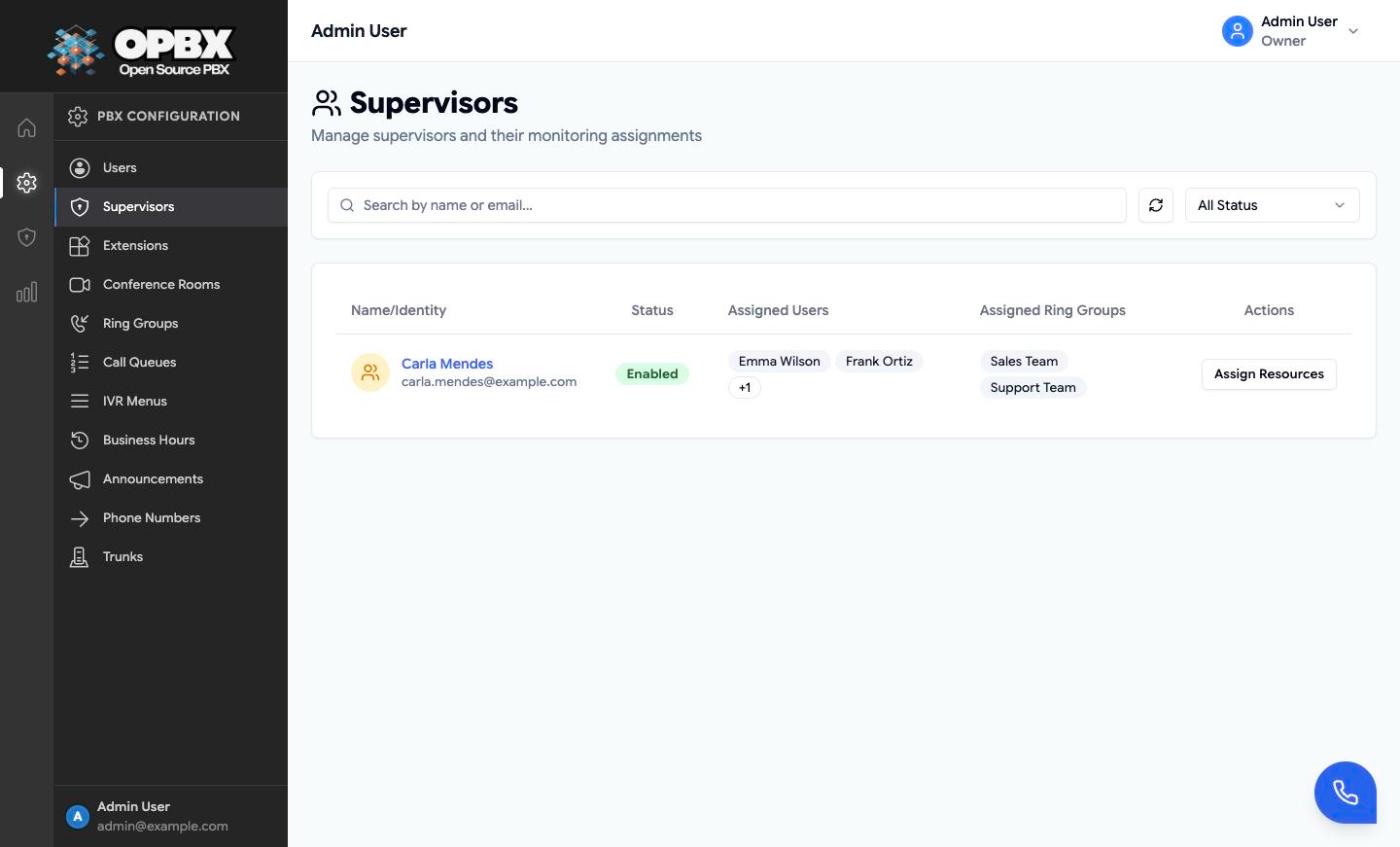
Open Supervisors in the sidebar (section PBX Configuration).
-
Click the Supervisor's name, or Assign Resources on their row.
-
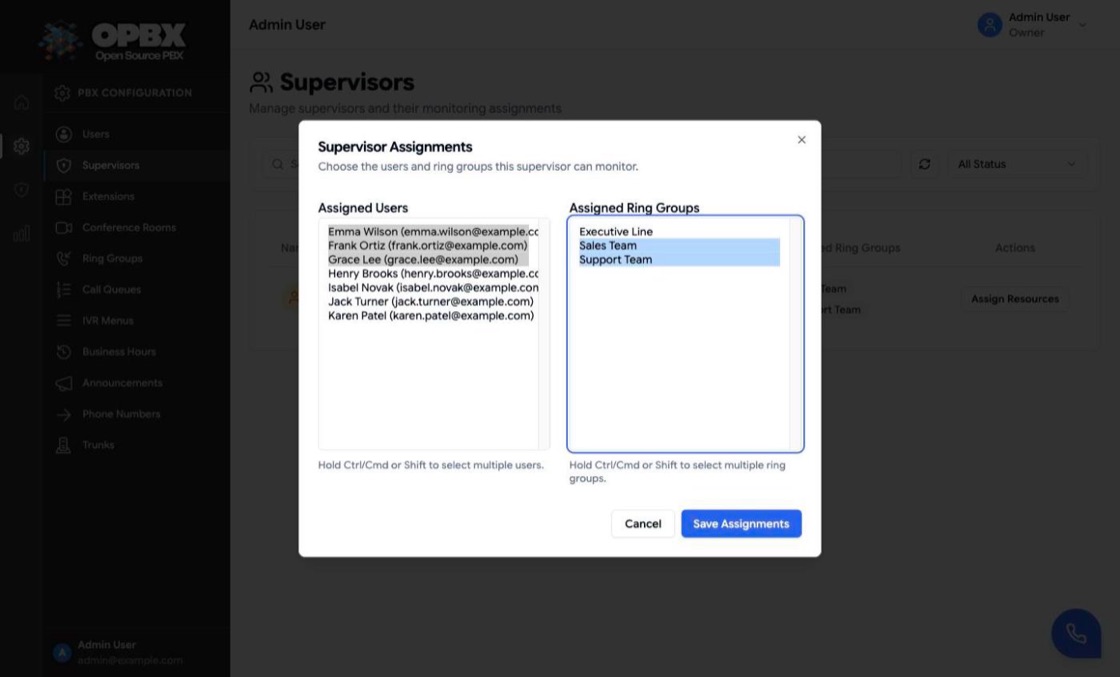
In Supervisor Assignments, select entries in the two lists:
- Assigned Users: the organization's PBX Users, shown as "name (email)";
- Assigned Ring Groups: the organization's ring groups.
Hold Ctrl (Cmd on a Mac) or Shift to select more than one.
-
Click Save Assignments.
Saving replaces the whole assignment with the current selection. A toast confirms "Supervisor assignments updated" and the row's chips update. The scope applies to the Supervisor's next page load or refresh. If the server refuses, the toast reads "Failed to update assignments" with the reason (see the rules below).
Assignment rules
| Rule | Message when broken |
|---|---|
| The target user must have the Supervisor role | Target user is not a Supervisor. |
| A Supervisor cannot supervise themselves | A Supervisor cannot be assigned to themselves. |
| Only PBX Users can be supervised | Only PBX Users can be assigned as supervised users. |
| Users and ring groups must belong to the Supervisor's organization | All assigned users must belong to the same organization. / All assigned ring groups must belong to the same organization. |
Both lists may be empty: saving with nothing selected removes every assignment.
Find a Supervisor
Who can do this: Owner and PBX Admin.
- Open Supervisors.
- Type in Search by name or email..., or choose All Status, Active or Inactive in the status filter. Clear Filters resets both.
- Click the Refresh icon to reload the list and the assignments.
When there are no Supervisors, the page shows "No supervisors yet".
| Column | Meaning |
|---|---|
| Name and email | Click to open the assignment dialog |
| Status | Enabled or Disabled. Click the badge to switch it (next workflow) |
| Assigned Users | Up to two names, then "+n"; "No assigned users" when empty |
| Assigned Ring Groups | Up to two names, then "+n"; "No assigned ring groups" when empty |
| Actions | Assign Resources |
Enable or disable a Supervisor
Who can do this: Owner and PBX Admin (not on their own account).
- On the Supervisor's row, click the Enabled (or Disabled) badge.
- Confirm Deactivate Supervisor with Deactivate (or Activate Supervisor with Activate).
A toast confirms "Supervisor status updated". This sets the user Inactive (or Active) at once. A disabled Supervisor cannot sign in. Their assignments are kept.
The Supervisor's Dashboard
When a Supervisor signs in, the Dashboard shows only their scope:
- Assigned Users, Assigned Ring Groups and Active Calls counters;
- Recent Calls: the last 5 call records in scope, with time, source number, source user, destination, status, duration and direction;
- the lists of assigned users (with extension numbers) and ring groups.
It refreshes every 30 seconds while the tab is visible.
Coaching calls
A Supervisor coaches calls from Live Calls with Spy, Whisper or Barge. The server refuses a call outside the scope with "This call is outside your supervised scope". See Live Calls.
Real-time updates
Supervisors do not join the organization's WebSocket channel, because it carries every call in the organization. Their Live Calls page uses polling only.
On the call-list endpoints (/v1/session-updates/active, its statistics, /v1/call-detail-records and its export and statistics), the server always applies the Supervisor scope to a Supervisor. The supervisor=true flag is ignored. The scope includes the Supervisor's own user and extension, so their own calls are listed too.
Key data fields
supervisor_user_assignments
| Column | Notes |
|---|---|
supervisor_id | The Supervisor |
user_id | A supervised PBX User |
organization_id | Tenant scope |
supervisor_ring_group_assignments
| Column | Notes |
|---|---|
supervisor_id | The Supervisor |
ring_group_id | A supervised ring group |
organization_id | Tenant scope |
The role is stored as supervisor in users.role.
Related API endpoints
| Method | Endpoint | Purpose |
|---|---|---|
| GET | /v1/supervisors/{user}/assignments | A Supervisor's assigned users and ring groups |
| PUT | /v1/supervisors/{user}/assignments | Replace them. Body: user_ids and ring_group_ids, both required arrays (may be empty) |
| GET | /v1/dashboard/supervisor | Scoped dashboard data. Owners and PBX Admins get the whole organization |
| GET | /v1/session-updates/active | Live calls in scope |
| GET | /v1/call-detail-records | Call records in scope |
| POST | /v1/session-updates/{sessionId}/coach-target | Dial target for coaching |
Scoped API keys use the supervisors resource for the assignment endpoints.
See the OPBX REST API reference for full schemas.
Related modules
- Users — create the Supervisor account and set roles
- Live Calls — watch and coach calls
- Call Logs — finished calls
- Ring Groups — the groups a Supervisor can be assigned
- Web Phone — the softphone used for coaching