Auth0 Syndicated Authentication
When the deployment has Auth0 configured, people can sign up and sign in with a social account instead of, or in addition to, an email and password.
Two providers are supported: Google and GitHub. The sign-in, registration and profile pages show a button for each one listed in AUTH0_PROVIDERS. Any other provider is refused with 422 "The selected provider is invalid." The same feature powers email invitations and requests to join an existing organization.
Auth0 sign-in works alongside password sign-in. A password user can keep their password and also link one or more social accounts.
Prerequisites
- The deployment runs with
OPBX_SAAS_ENABLED=trueand the Auth0 variables (AUTH0_DOMAIN,AUTH0_CLIENT_ID,AUTH0_CLIENT_SECRET,AUTH0_REDIRECT_URI,AUTH0_PROVIDERS). See Auth0 Setup. - Without this configuration, no social buttons are shown, the Linked Accounts section of the profile is hidden, the Invite User button on the Users page is disabled (its tooltip says "Invitations need Auth0, which is not configured on this server."), and every Auth0 endpoint answers
503withAUTH0_NOT_CONFIGURED"Auth0 is not enabled."
Permissions
| Action | Owner | PBX Admin | PBX User | Reporter | Supervisor |
|---|---|---|---|---|---|
| Sign in with a linked social account | Yes | Yes | Yes | Yes | Yes |
| Link or unlink their own social accounts | Yes | Yes | Yes | Yes | Yes |
| Invite a user by email | Yes | Yes | No | No | No |
| List, approve or reject join requests (API) | Yes | Yes | No | No | No |
Workflows
Sign up: create a new organization
Who can do this: anyone with a social account whose email has no OPBX account yet.
- Open the registration page (
/ui/register). - Under Or continue with, click Google or GitHub.
- Sign in at the provider. The provider must report the email address as verified.
- OPBX creates a new organization named "your email Organization", makes you its Owner, shows the toast Login successful! and opens the Dashboard. Rename the organization in your Profile.
If an OPBX account with that email already exists, nothing is created: the toast says to sign in with your password and link the account in your profile. If the social account is already linked, you are simply signed in.
Sign in with a social account
Who can do this: any active user (every role) who linked the provider before.
- Open the sign-in page (
/ui/login). - Under Or continue with, click the provider you linked before.
- After the provider sign-in, OPBX finds the linked account, shows Login successful! and opens the Dashboard.
The session lasts 24 hours. What happens when the social account is not linked yet:
| Situation | Result |
|---|---|
| The provider's email is not verified | AUTH0_EMAIL_UNVERIFIED: the toast Email not verified and you are back on the sign-in page. Verify the email with the provider first |
| An OPBX account with that email already exists | AUTH0_ACCOUNT_EXISTS: sign in with your password, then link the provider in your profile |
| No OPBX account with that email | The Complete your account page opens (below) |
| The OPBX account is inactive or pending | ACCOUNT_INACTIVE "Account is not active." |
Complete your account (new social users)
Who can do this: a person who signed in with a social account that matches no OPBX user.
The Complete your account page opens by itself and offers two choices:
- Create a new organization: click it to sign in at the provider again; OPBX then creates the organization with you as Owner (as in Sign up).
- Request to join organization: enter the Organization slug (for example
acme-corp; ask an Owner of that organization for it) and click Request to join organization. The toast says "Join request submitted. Please wait for approval." and the sign-in page opens.
The onboarding session is valid for 60 minutes and can be used for one request. When it has expired the toast says "Your sign-in session expired. Please sign in again." The slug must belong to an existing, active organization; otherwise the toast says "Failed to submit join request." If the email of the social account already belongs to an OPBX user, the toast says "The email has already been taken."
Approve or reject a join request
Who can do this: Owner, PBX Admin (API only; there is no page for join requests).
A join request records the target organization, the person's email and name, and the social account they used.
| Action | Endpoint | Result |
|---|---|---|
| List pending requests | GET /v1/organizations/join-requests | Pending requests of your organization, newest first |
| Approve | POST /v1/organizations/join-requests/{id}/approve | Creates an active PBX User with a random password and links the social account. The person can then sign in with that provider |
| Reject | POST /v1/organizations/join-requests/{id}/reject | Marks the request rejected |
A request that is no longer pending cannot be approved again (JOIN_REQUEST_NOT_PENDING). Approving a request whose email meanwhile belongs to a user (of any organization) is refused with a 422 on email, "The email has already been taken.", and the request stays pending. OPBX does not email the requester about the decision.
Link a social account to your profile
Who can do this: every signed-in user, for their own account.
- Sign in (with your password or an already linked provider).
- Open Profile from the user menu.
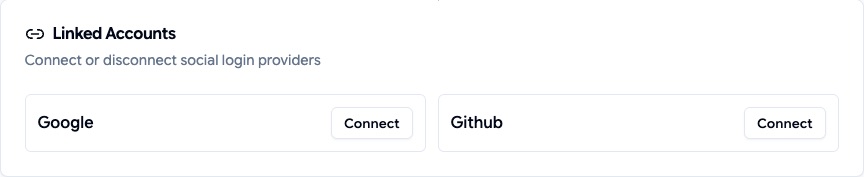
- In Linked Accounts, click Connect next to a provider (the card lists Google and Github when they are configured).
- Sign in at the provider with the same email address as your OPBX account (upper and lower case do not matter).
- You return to your profile with the toast Account linked successfully! and the provider now shows Disconnect.
| Error | Meaning |
|---|---|
AUTH0_LINK_EMAIL_MISMATCH "Auth0 email does not match your account email." | The provider account has another email. The toast Could not link account appears on your profile |
AUTH0_LINK_ALREADY_LINKED | That provider account is already linked to a user |
Unlink a social account
Who can do this: every signed-in user, for their own account.
- Open Profile › Linked Accounts.
- Click Disconnect next to the provider.
The toast says "Account unlinked." and the provider shows Connect again. Your OPBX account and password stay as they are.
Invite a user by email
Who can do this: Owner, PBX Admin (needs Auth0).
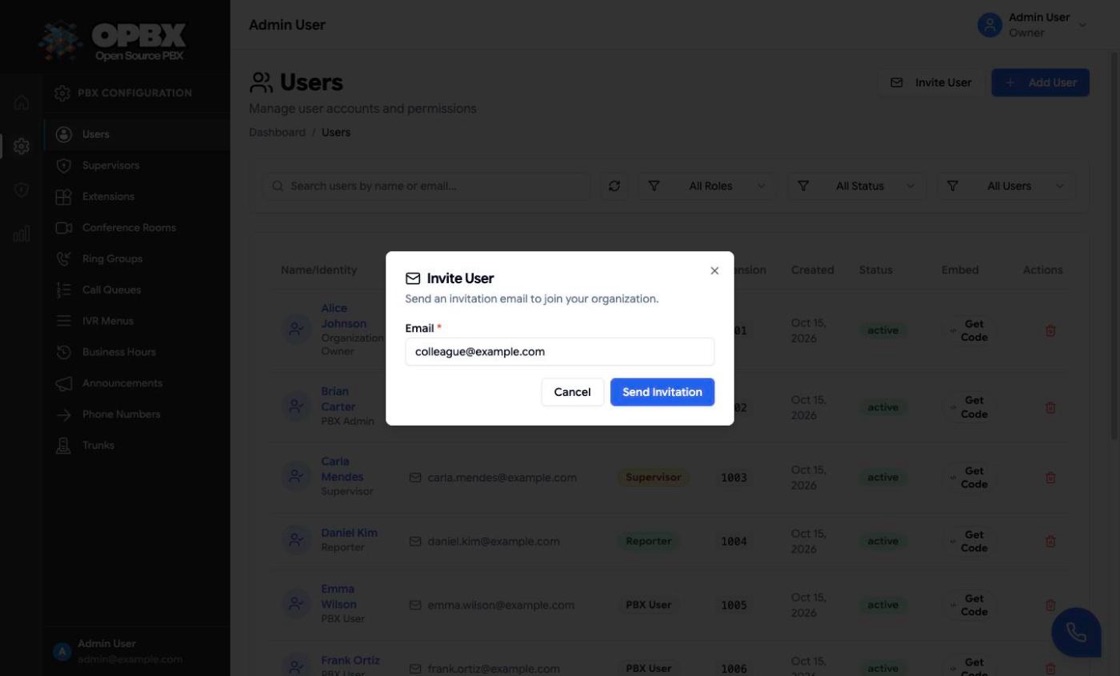
- Open Users and click Invite User.
- In the Invite User dialog, enter the Email, for example
colleague@example.com, and click Send Invitation. - The toast Invitation sent successfully. appears. OPBX creates a pending user with the PBX User role and emails a link to
/ui/invite?token=…. If the server refuses, the reason is shown in the dialog.
Rules:
- When Auth0 is not configured, the Invite User button is disabled.
- The link is valid for 24 hours (
OPBX_INVITE_TOKEN_TTL_HOURS) and can be used once. - Inviting an email that is still pending sends a new link; the old one stops working.
- Inviting an email that already belongs to a user of your organization is refused: "A user with this email already exists in the organization." An email that belongs to a user of another organization is refused with "The email has already been taken." (an email can belong to one organization only).
- Each organization can send at most 10 invitations per hour (
OPBX_INVITE_RATE_LIMIT_PER_HOUR): "Invitation rate limit exceeded. Please try again later." - Change the invited user's role afterwards on the Users page if PBX User is not right.
Accept an invitation
Who can do this: the invited person.
- Open the link from the invitation email. The page says "You're invited" and "Join organization on OPBX."
- Click Accept & Continue and sign in at the first configured provider, with the invited email filled in.
- If the provider's email is verified and matches the invitation, the user becomes active, the toast Login successful! appears and the Dashboard opens.
| Invitation error | Meaning |
|---|---|
INVITE_EXPIRED_OR_INVALID "Invitation is invalid or has expired." | The link is wrong, expired or already used. The page shows Invitation Error with Go to Login |
INVITE_INVALID_USER | The invited user was already activated |
INVITE_EMAIL_MISMATCH | The provider account's email is not the invited email (toast Invitation email mismatch) |
AUTH0_EMAIL_UNVERIFIED | The provider did not confirm the email |
Other errors
| Code | Cause | What to do |
|---|---|---|
AUTH0_NOT_CONFIGURED | Auth0 is not enabled or no provider is configured | Configure Auth0 (see Prerequisites) |
AUTH0_INVALID_PROVIDER | The provider is not in AUTH0_PROVIDERS | Use a configured provider |
AUTH0_INVALID_STATE | The sign-in attempt expired or the callback was reused | Start the sign-in again |
AUTH0_INVALID_CALLBACK | The callback is missing its code or state | Start the sign-in again |
AUTH0_RESOLUTION_FAILED | Unexpected error while matching the account | Check the logs |
Key data fields
user_social_identities
| Column | Notes |
|---|---|
user_id | The OPBX user |
provider | google or github |
provider_subject | The provider's user id |
provider_email | Email returned by the provider when linked |
provider_data | Extra provider details |
organization_join_requests
| Column | Notes |
|---|---|
organization_id | Target organization |
email, name | The requester |
provider, provider_subject | The social account used |
status | pending, approved or rejected |
Related API endpoints
| Method | Endpoint | Purpose |
|---|---|---|
| POST | /v1/auth/auth0/redirect | Start a sign-in (provider, intent) |
| GET | /v1/auth/auth0/callback | Finish the sign-in |
| POST | /v1/auth/auth0/link | Start linking a provider (signed in) |
| POST | /v1/auth/auth0/unlink | Unlink a provider (signed in) |
| POST | /v1/users/invite | Invite by email (Owner, PBX Admin; needs Auth0) |
| GET | /v1/users/invite/validate | Check an invitation link |
| POST | /v1/users/invite/accept | Accept and get the Auth0 sign-in URL |
| POST | /v1/organizations/join-requests | Submit a join request (onboarding) |
| GET | /v1/organizations/join-requests | Pending requests |
| POST | /v1/organizations/join-requests/{id}/approve | Approve |
| POST | /v1/organizations/join-requests/{id}/reject | Reject |
See the OPBX REST API reference for full schemas.
Related modules
- Users — the Invite User button and roles
- Profile — Linked Accounts
- Auth0 Setup — tenant and environment configuration