Agents
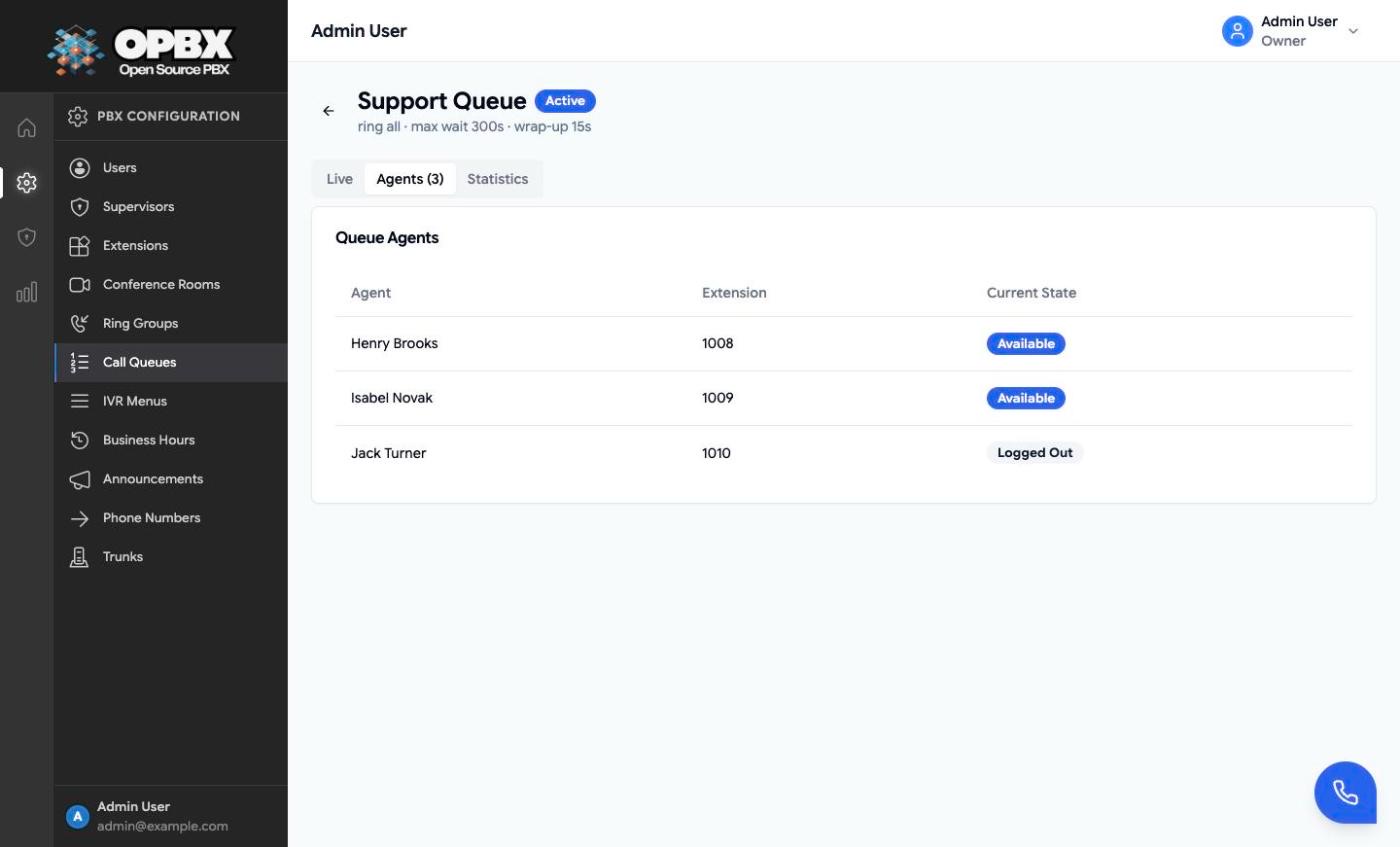
The agents of a call queue are active users with an extension. An agent is only offered queue calls while logged in. Agents change their own state from the Queues menu in the page header or by dialing the queue's login code, and an Owner or PBX Admin can log any agent in or out from the queue's Agents tab. To add or remove agents, edit the queue (see Edit a call queue).
Permissions
- Owner and PBX Admin can log any agent in or out from the queue's Agents tab.
- Any user who is an agent of a queue can change their own state, from the header Queues menu or with
*45.
See Call Queues for the full table.
Agent states
| State (label) | Meaning |
|---|---|
| Logged Out | Not offered calls. The default |
| Available | Offered calls |
| On Call | On a queue call. Not offered further calls |
| Wrap-up | Just finished a call, and returns to Available after the queue's wrap-up time. An agent who chooses Wrap-up themselves stays in Wrap-up until they change it |
An available agent who is already on another call is skipped automatically. Presence comes from live call updates.
Workflows
Join a queue as an agent
Who can do this: any user who is an agent of the queue.
- Click Queues in the page header. The button shows only when you are an agent of at least one queue; its badge counts the queues you are logged in to.
- Under My Queue Status, find the queue. Its badge shows your state (Logged out, Available, Wrap-up or On call).
- Click Go Available to start taking calls.
To pause, click Wrap-up: you stay in Wrap-up, without new offers, until you change it. To stop, click Log out. The menu refreshes every 15 seconds.
Log in or out by phone
Who can do this: any user who is an agent of the queue, calling from their own extension.
- Find the queue's login code in the Agent Login column of the Call Queues list, for example
*459for queue 9. - From your own extension, dial that code.
The code toggles your state: Logged Out becomes Available, any other state becomes Logged Out. A voice confirms "You are now logged in to queue name." or "You have logged out of queue name." A call from a phone that is not your extension, or for an inactive queue, only plays a short message.
Log an agent in or out
Who can do this: Owner, PBX Admin.
- On Call Queues, click the queue's row to open its detail page.
- Open the Agents tab. It lists each agent with Agent, Extension and Current State.
- Click an agent's state badge. Logged Out switches to Available; any other state switches to Logged Out. An agent who is On Call cannot be switched.
To add or remove agents, edit the queue.
Related modules
- Call Queues — create a queue and choose its agents
- Live View — available agents and waiting callers on the queue's Live tab
- Users — agents must be active users
- Extensions — agents must have an extension assigned
- Queues Dashboard — an agent card per agent, coloured by state