Container Applications Management
Container Applications, also known as Container Applications or Container Application Resources are a special kind of voice application
that is executed inside the Cloudonix platform, without requiring the customer to maintain their own application servers.
Container Applications are available under 5 different runtimes, which are as following:
| Run-Time Engine | Runtime name in Cockpit | Description |
|---|---|---|
cxml | Static CXML | An application that is executed from a static CXML document, no additional processing is performed or any other dynamic features. |
forward | Forward to a different URL | Transfer the control of the connected call to a remote URL application resource. |
javascript | JavaScript | An application using this engine will be written in JavaScript and will comply with running Node based Lambda functions. |
ruby | Ruby | An application using this this engine will be written in Ruby and will comply with running Ruby based Lambda functions. |
select | Select next block according to user input | Select the next Container Application Block to execute, based on the users DTMF (keypad) input. This runtime is useful for simple menu based applications. |
Container Application Ownership
A Container Application is owned by the Cloudonix Tenant (customer) and as such, is made available to ALL tenant owned Domains.
In order to activate a Container Application, an associated Voice Application MUST be created in the Domain and connected to the
Container Application and the relevant execution block.
Container Application Creation and Usage Workflow
Creating a cxml runtime Container Application
From the left hand menu, click the Container Applications menu item, a view similar to the below will appear. Existing
Container Applications are displayed as cards below the header, each showing the application name, its number of blocks,
the cx://hosted-app/<app>/<block> URL (with a copy button) and the Open, Log and delete buttons:

Click the Create Application button to create a new Container Application, the following dialog will appear:
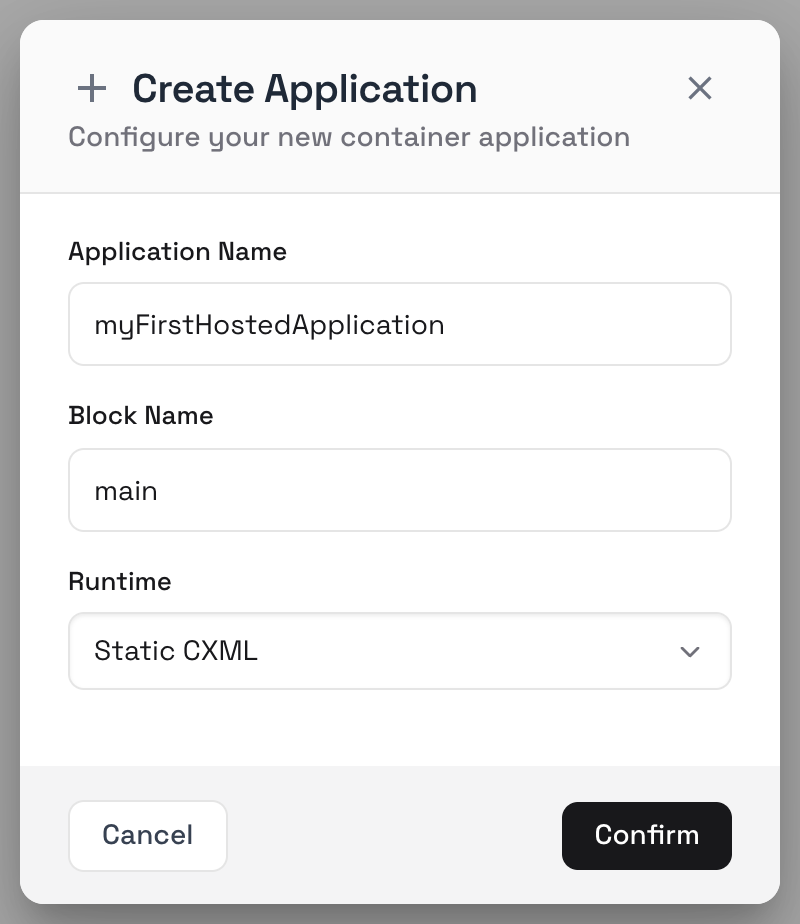
Enter the Application Name, the Block Name (defaults to main) and select the Runtime. Block names may contain only
letters, digits and hyphens. For the purpose of this guide, we've selected the Static CXML (cxml) runtime, which is the simplest to use.
Click the Confirm button to submit the Container Application. Once submitted, the Container Application IDE will open,
showing the newly created Container Application. Type your code into the editor and click Save to store it:
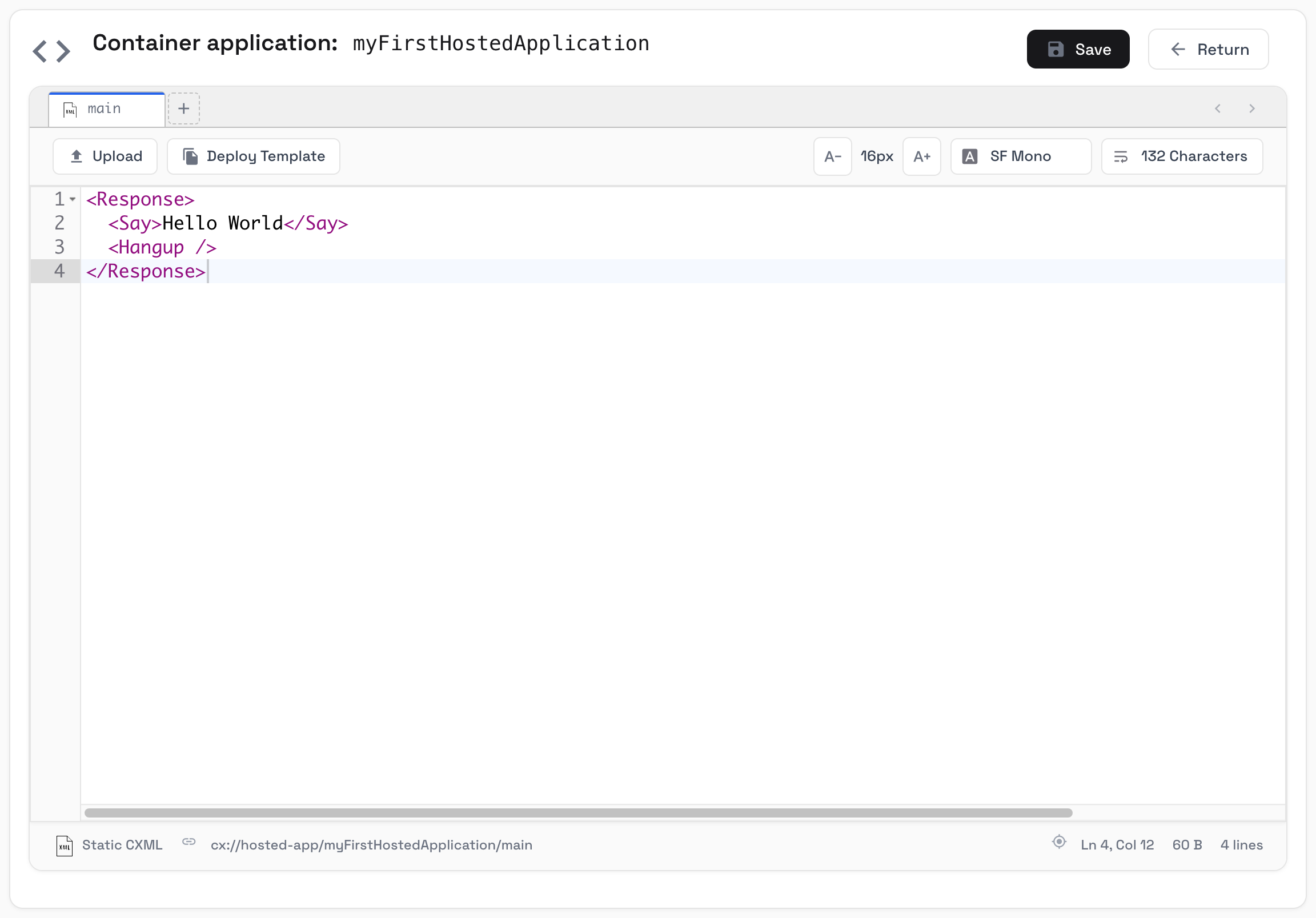
A Container Application ALWAYS includes a main block, which is the first block to be executed (this is the default, but can be changed). The IDE enables several functions, as detailed below:
| Control | Description |
|---|---|
| Block tabs | Each Container Application block is displayed as a tab (e.g. main). Click a tab to edit that block. |
+ tab | Create a new Container Application block, using the Create New Block dialog (Block Name and Runtime). Different blocks may use different runtimes. |
Upload | Upload code into the current block. |
Deploy Template | Deploy a template into the current block. |
Save | Save the Container Application code. |
Return | Return to the Container Applications view. |
The status bar at the bottom of the editor displays the block runtime, the block URL (e.g. cx://hosted-app/myFirstHostedApplication/main), the cursor position and the code size.
Attaching Containers to Voice Applications
When creating a new voice application, select the Container Application Resource as the Application Resource Type in the
Connect A New Application dialog. Then select the Container Application Resource (your Container Application) and its Entry Block, and click Confirm:
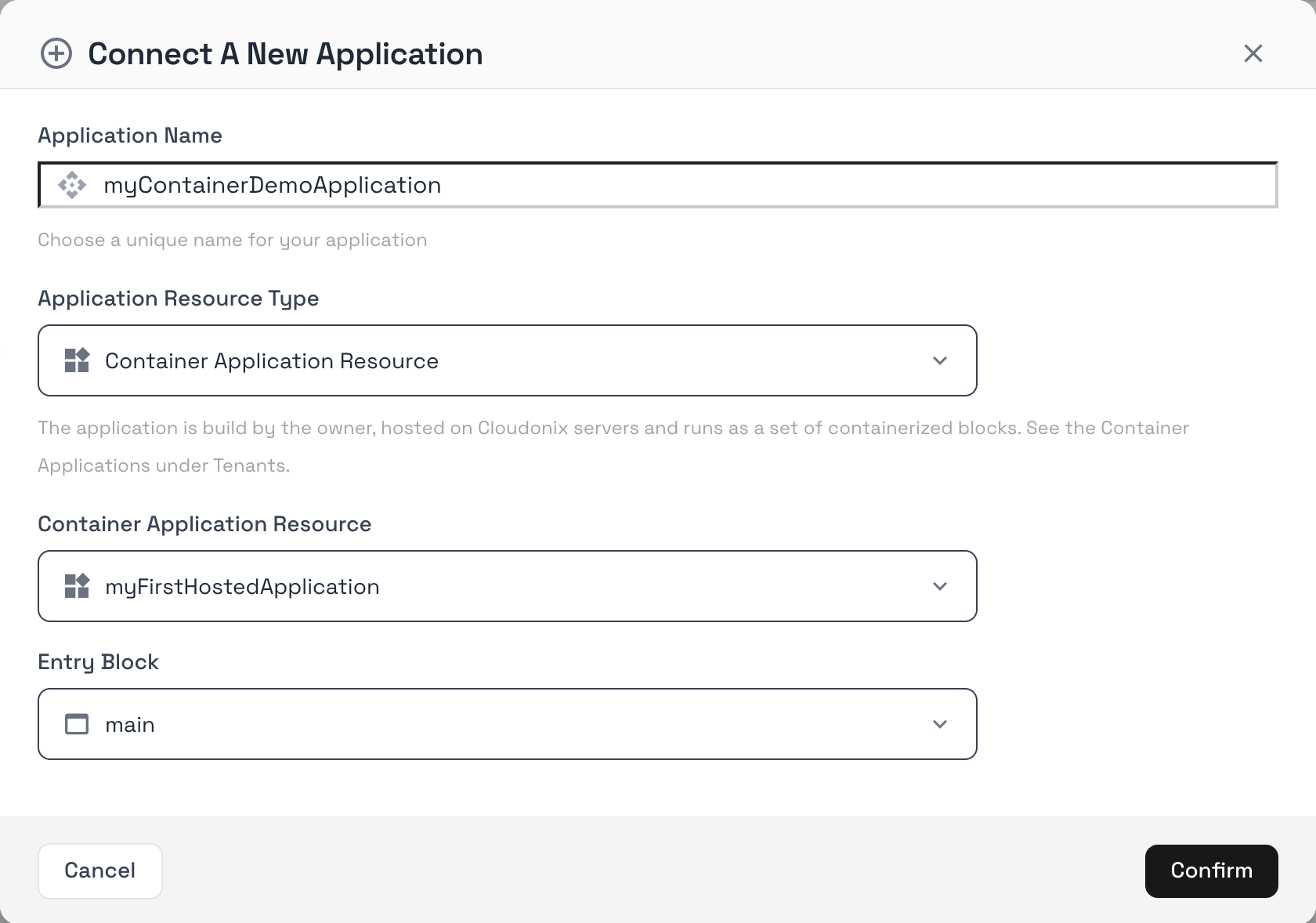
Once created, the newly created voice application will use the provided Container Application.