Voice Application Setup
While container applications provide the building blocks for building a call-flow, to make them fully functional we need to attach these to a voice application resource.
The following assumes that you either have a voice trunk connected to your account or at least a IP phone (hardware or software). If you don't, please follow the "Your First Application" tutorial, before you continue with this section.
Step 1: Attach Container Voice Application
In your Cloudonix account, under your chosen domain, select the Applications. Once inside the Applications view, click the Add Application Connection button, to create a new Voice Application. The Connect A New Application dialog will appear:
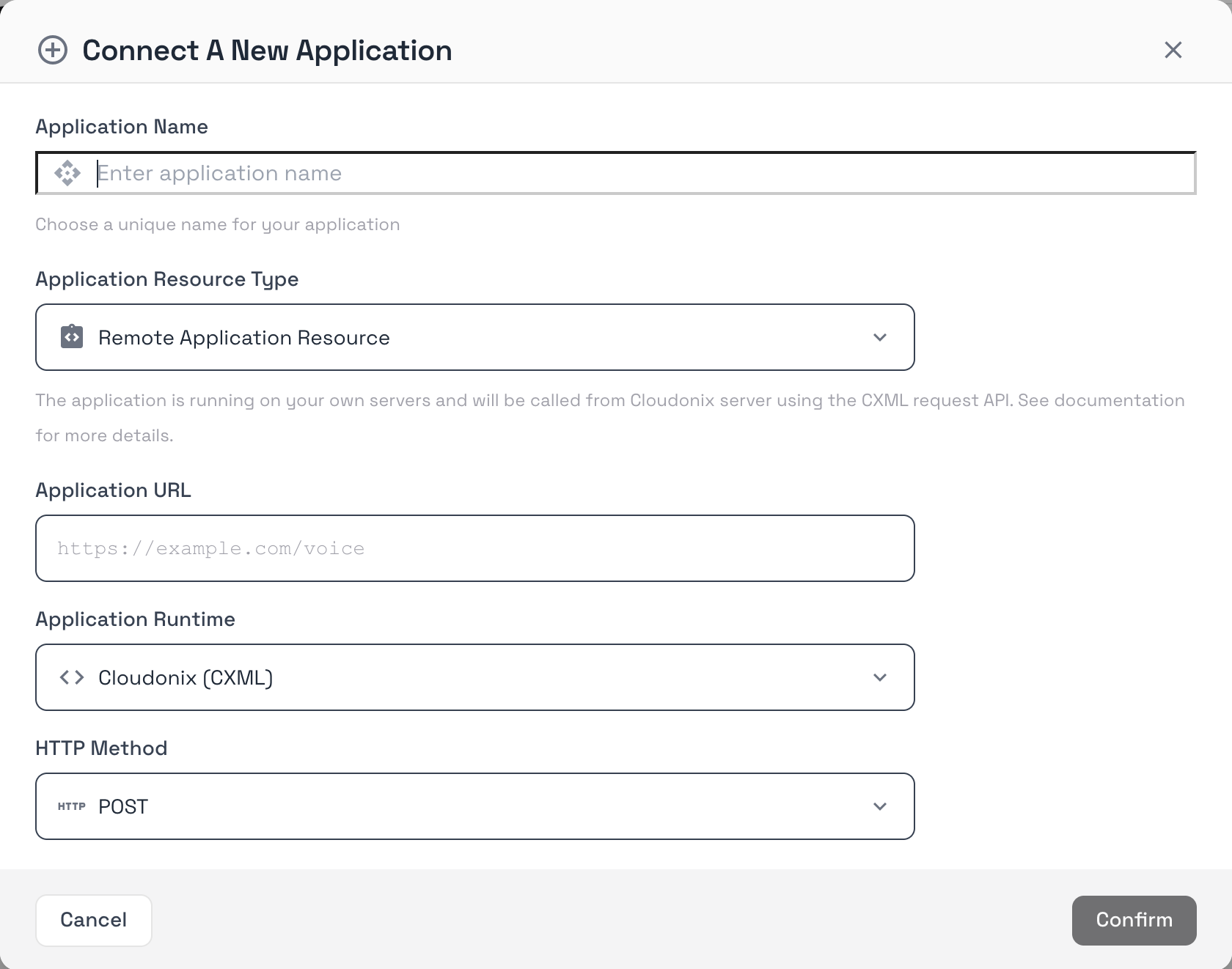
Use the following information to fill the form:
| Form Field | Value |
|---|---|
| Application Name | clinicIvrDemo |
| Application Resource Type | Container Application Resource |
| Container Application Resource | clinicDemo |
| Entry Block | cxml-menu-main |
Once you've filled all fields, the form should look like this:
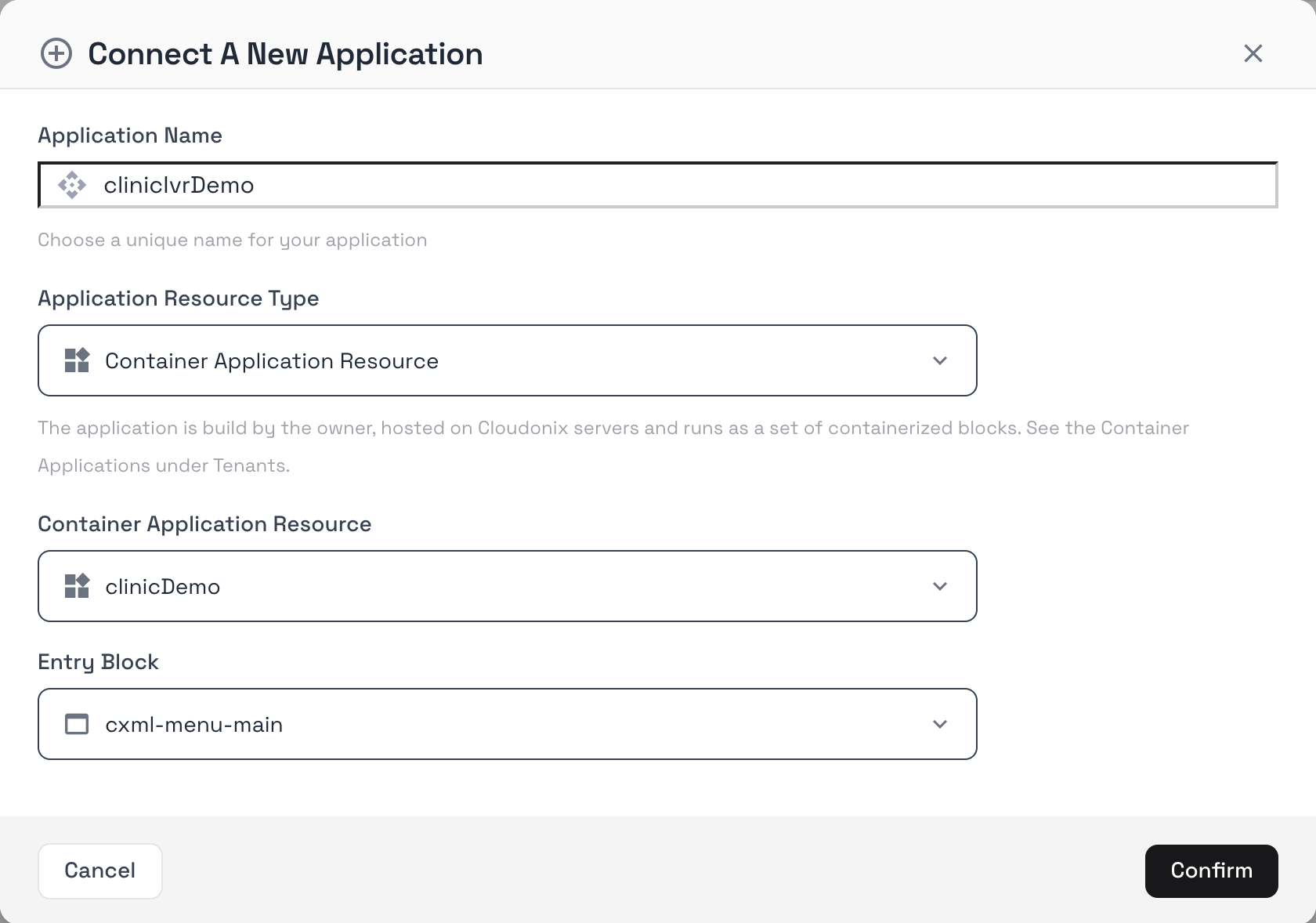
Click the Confirm button to save your voice application. The following line will appear in your Applications view:

Congrats! — Your container application is now attached to a voice application and is ready for the next step.
Step 2: Attach DNID Voice Application
In the Applications view, click the icon, to enter the application settings view. The following screen will appear:
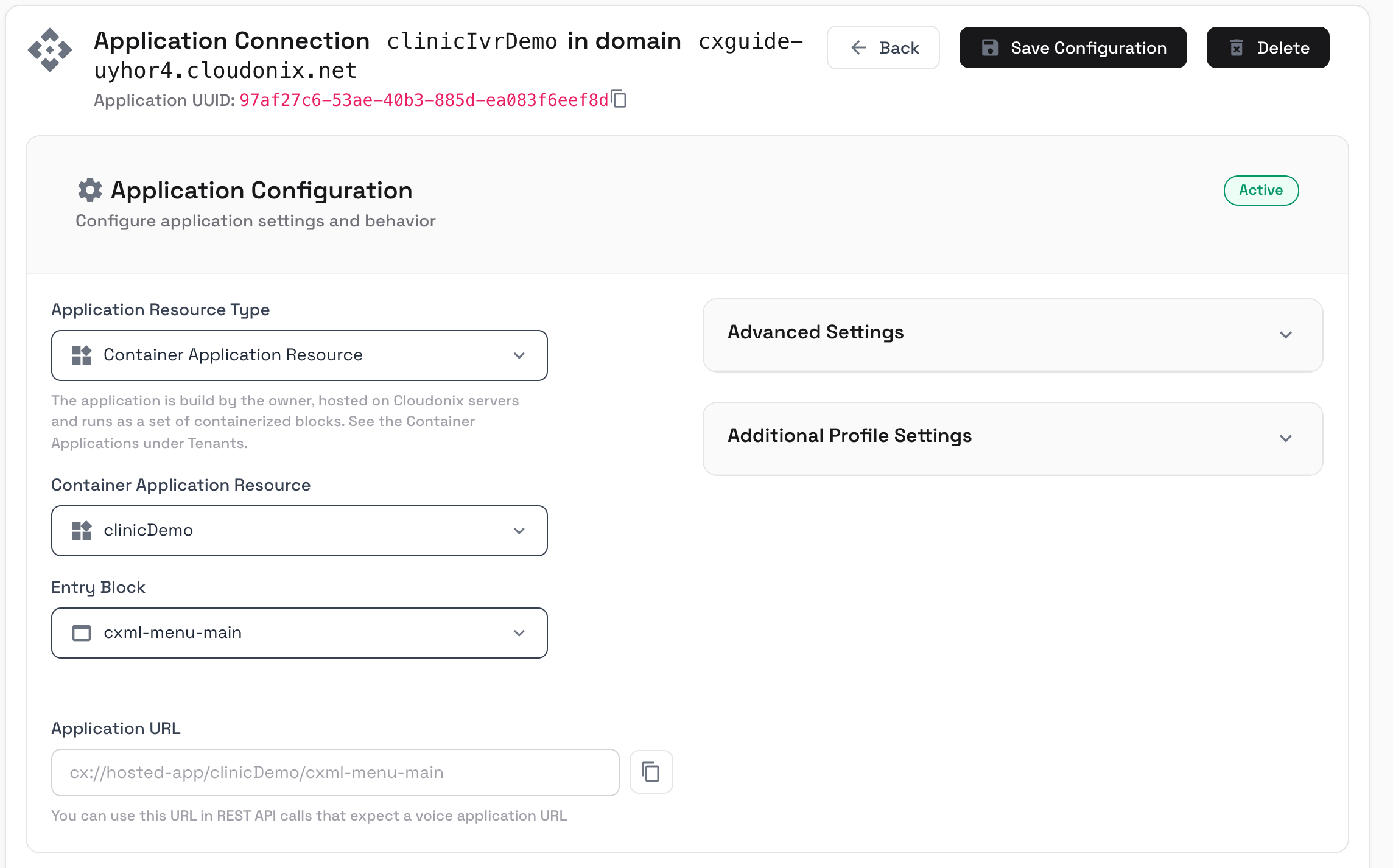
In the DNID Numbers section of this page, click the Create DNID button, to assign a DNID number to your Voice Application. The Adding a new DNID dialog will appear:
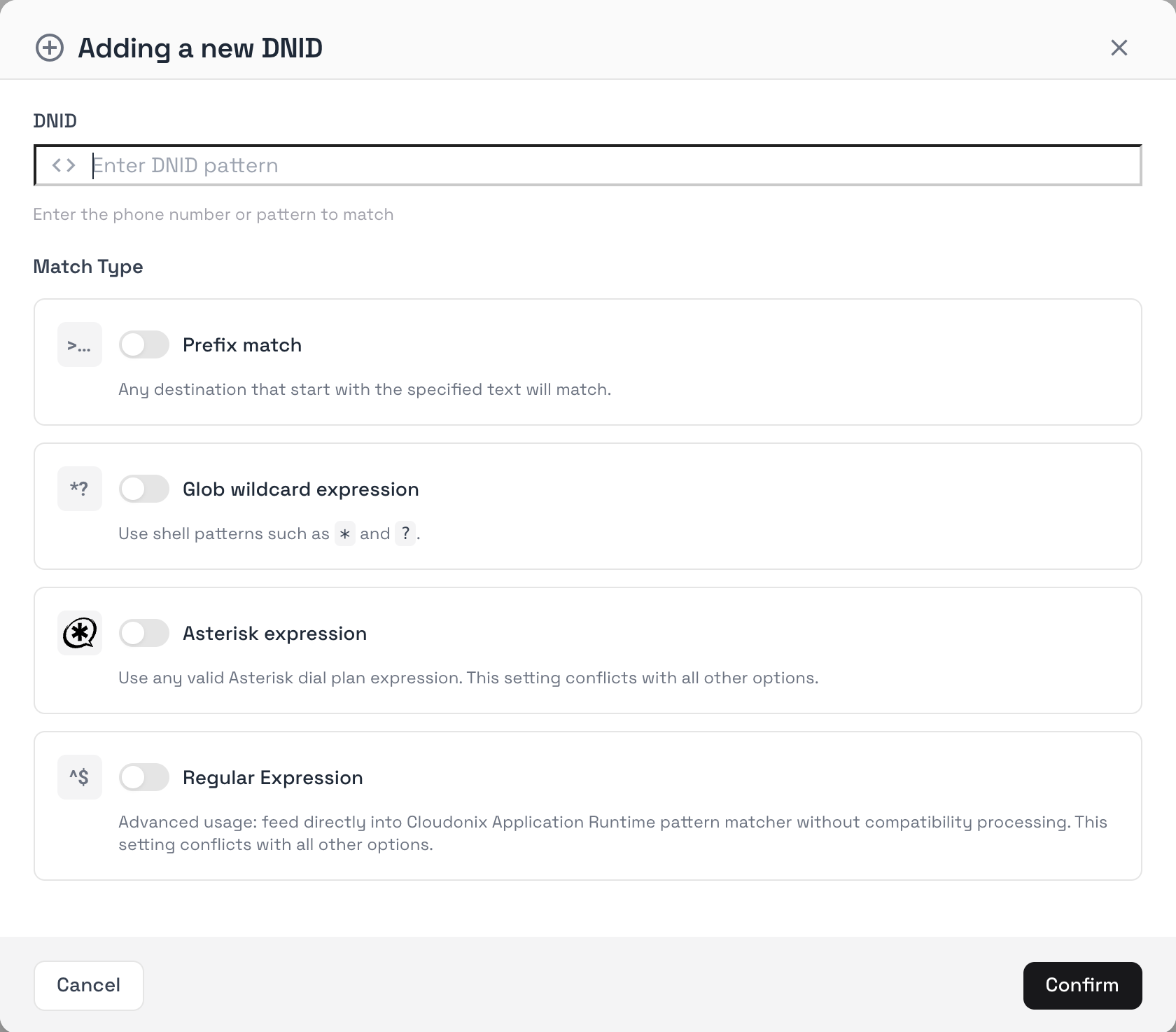
Add the number 10000 to the field named DNID and click the Confirm button. Once finished, click the Back button, your Applications view should show the following line:

There is much more information about Voice Applications, DNIDs and their various associated options. You learn more about these here.
Step 3: Test your Voice Application
Assuming you've connected an IP phone to your Cloudonix account and domain, dialing the number 10000 from your IP phone will activate your Voice Application.