Container Application Skeleton
Container applications are built of various blocks. There are five block types: static, select, forward, JavaScript and Ruby. To learn more about container applications, click here.
Without going into a Naming Convention rant (or to be more exact,
a potential religious war) - we recommend that you use the following naming conventions for your blocks. Note that block
names may only contain letters, digits and hyphens (-) - underscores are not allowed:
| Block Type | Description | Naming Convention | Example |
|---|---|---|---|
static | A static block consists of a static CXML file, performing a pre-determined CXML call-flow script. | cxml-[purpose] | cxml-call-pharmacy |
js | A js block consists of a JavaScript based script, resulting in a CXML outbput. | js-[purpose] | js-lunch-router |
ruby | A ruby block consists of a Ruby based script, resulting in a CXML outbput. | ruby-[purpose] | ruby-lunch-routed |
select | A select block consists of a set of options a caller can choose, and then once chosen, the call is transfered to a specific block or a voice application endpoint. | select-[purpose] | select-main-menu |
forward | A forward blocks consists of a single block name or a remote voice application URL, where control is transferred to, once the block is executed. | forward-[purpose] | forward-next-block |
Step 1: Create a container application
Login to your Cloudonix account, and select Container Applications from the main menu. The following screen will appear:

Click the Create Application button to create a new container application. In the Create Application dialog, enter
clinicDemo as the Application Name, keep main as the Block Name and select Static CXML as the Runtime.
When a new container application is created, the platform will require you to create a main block. As a best
practice, we recommend using a DUMMY main block, as our container application will have multiple blocks.
Use the following CXML sample for your main block:
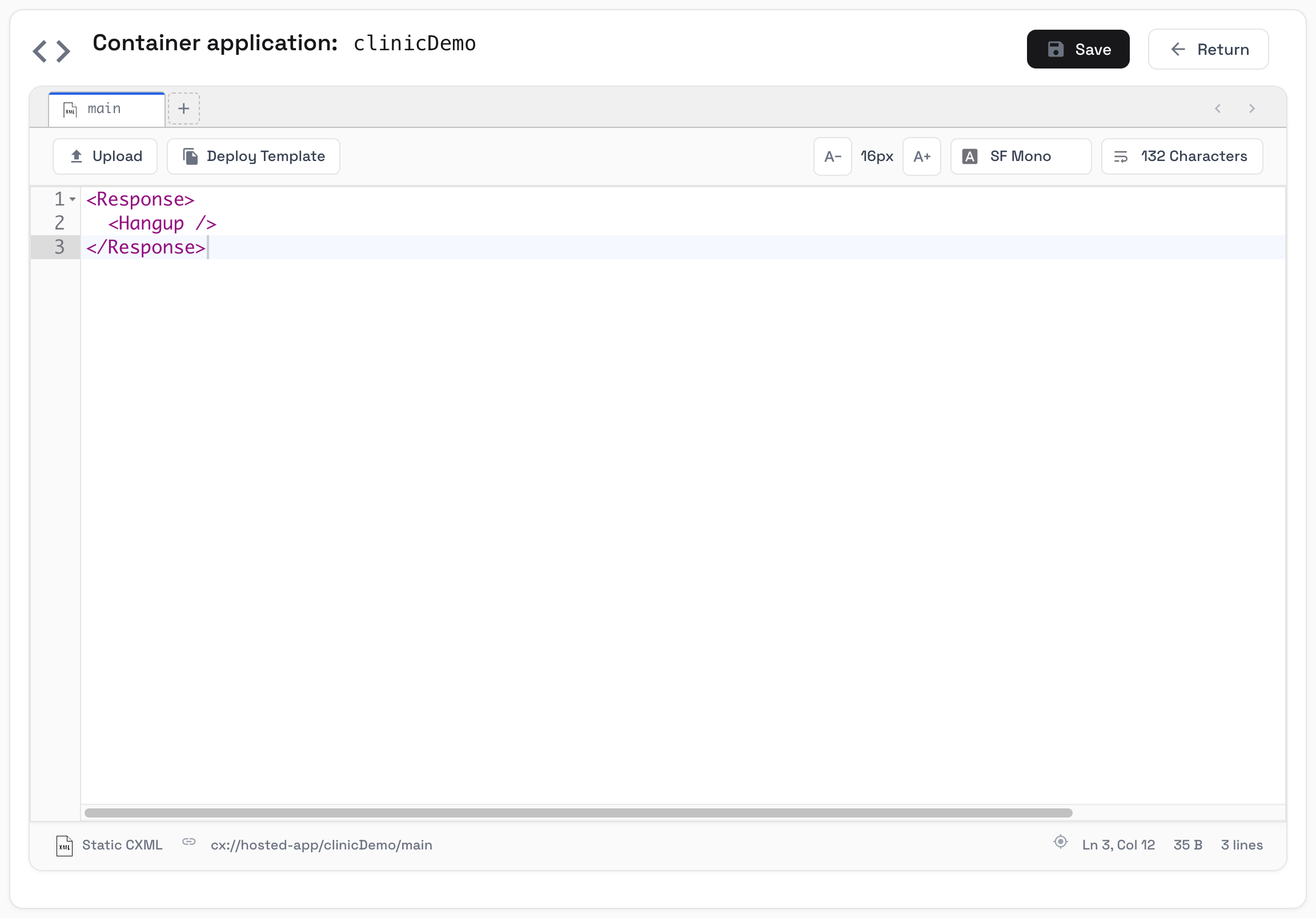
<Response>
  <Hangup />
</Response>
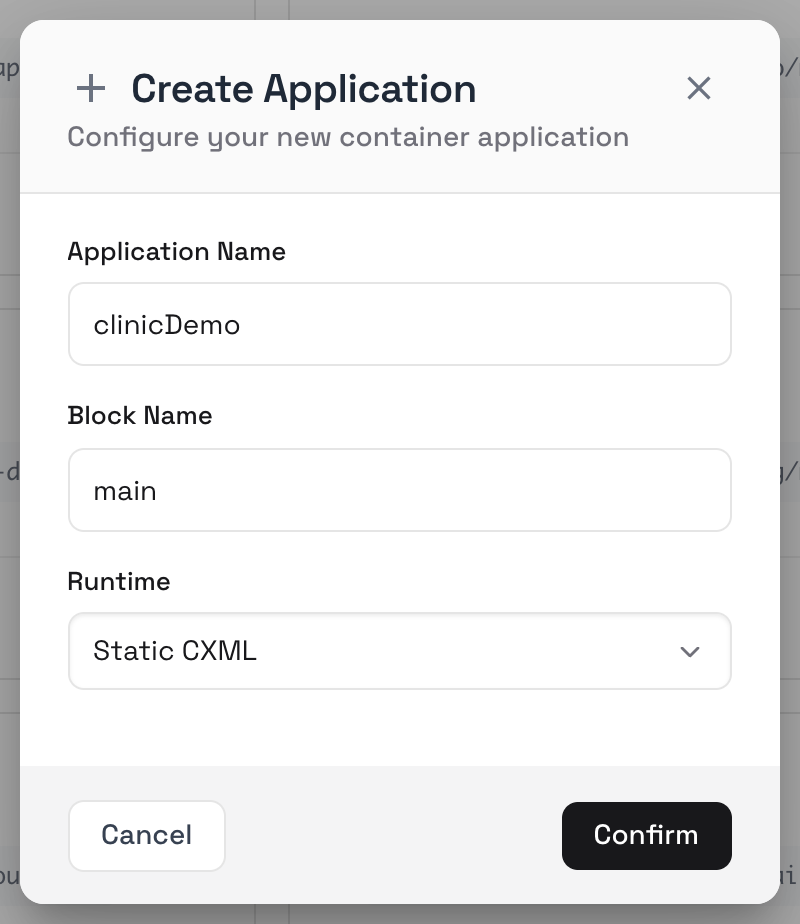
Click the Confirm button to create your container application. The container application IDE will open with the main
block. Type the above CXML into the editor and click the Save button. The following screen should appear:
Step 2: Setting up Selector Blocks
We will need to setup two Selector Blocks: Main Menu and Language Selector. Click the + tab located
next to the block tabs at the top of the editor, to create a new block. In the Create New Block dialog, use select-main-menu as the Block Name and
select Select next block according to user input as the Runtime, to indicate that this is a selector block. Type the following text
into the editor for each of your select blocks, and click Save:
1:js-lunch-router
2:select-language
3:cxml-call-pharmacy
0:cxml-call-receptionist
1:cxml-connect-english-ai
2:cxml-connect-spanish-ai
9:select-main-menu
0:cxml-call-receptionist
Step 3: Setting up Static Blocks
We need to setup 7 specific static blocks. Based on our previous flowchart, here are the static blocks we need to create:
| Block Name | Description |
|---|---|
cxml-menu-main | Playback (or use text-to-speech) announce the main menu of the clinic. |
cxml-menu-language | Playback (or use text-to-speech) announce the language menu. |
cxml-call-back-later | Playback (or use text-to-speech) to the caller that all staff are currently out to lunch and they should callback in an hour. |
cxml-call-receptionist | Transfer the inbound call to the receptionist extension (or a remote phone number, if applicable). |
cxml-connect-english-ai | Transfer the inbound call to a remote voice agent AI service, in English. |
cxml-connect-spanish-ai | Transfer the inbound call to a remote voice agent AI service, in Spanish. |
cxml-call-pharmacy | Transfer the inbound call to the pharmacy extension (or a remote phone number, if applicable). |
Use the following samples as your CXML blocks:
<Response>
    <Say>Welcome to the ACME clinic. For </Say>
    <Transfer>select-main-menu</Transfer>
</Response>
<Response>
    <Say>We're sorry, but our staff are currently out for lunch. Please call back in an hour and we'll be happy to assist you.</Say>
    <Transfer>select-main-menu</Transfer>
</Response>
<Response>
    <Say>We're sorry, but our staff are currently out for lunch. Please call back in an hour and we'll be happy to assist you.</Say>
    <Transfer>select-main-menu</Transfer>
</Response>
<Response>
    <Dial timeout="45">+12127773456</Dial> <!-- Dial the remote receptionist phone number -->
    <Say>Your call is important to us, please hold the line and we'll be with you shortly.</Say>
    <Transfer>cxml-call-receptionist</Transfer>
</Response>
<Response>
    <Dial>
        <Service provider="vapi">+991444555</Service> <!-- Call a VAPI voice agent assistant -->
    </Dial>
    <Hangup />
</Response>
<Response>
    <Dial>
        <Service provider="retell">+991444666</Service> <!-- Call a ReTell voice agent asssitant -->
    </Dial>
    <Hangup />
</Response>
<Response>
    <Dial timeout="45">+12127771111</Dial> <!-- Dial the pharmacy phone number -->
    <Say>Your call is important to us, please hold the line and we'll be with you shortly.</Say>
    <Transfer>cxml-call-receptionist</Transfer>
</Response>
Step 4: Setting up JavaScript Blocks
Implementing our lunch time router will be performed using JavaScript.
We use JavaScript here as it is a simple langauge to understand. If you are un-familiar with JavaScript, we suggest that you review our Make Application, to learn how to build Voice Applications without coding.
Use the following sample as your JavaScript lunch router block:
const httpClient = require('https');

function getTimeInMinutesFromTimeZone(ev) {
    /* Use a remote service to query the time, assuming that our clinic is in Lon-Angeles */
    const url = 'https://timeapi.io/api/time/current/zone?timeZone=America%2FLos_Angeles';

    return httpClient.get(url)
        .then(response => {
            if (!response.ok) {
                throw new Error(`HTTP error! status: ${response.status}`);
            }
            return JSON.parse(response.body);
        })
        .then(data => {
            return data.hour * 60 + data.minute;
        })
        .catch(error => {
            console.error('Failed to fetch time data:', error);
            return null;
        });
}

function timeOfDayRouter(ev, timeOfDay) {
    /* Lunch hour starts at 11:55 AM and ends at 13:30 PM */
    let targetHoursStart = 11;
    let targetMinuteStart = 55;
    let targetHoursEnd = 13;
    let targetMinuteEnd = 30;

    let targetTsStart = targetHoursStart * 60 + targetMinuteStart;
    let targetTsEnd = targetHoursEnd * 60 + targetMinuteEnd;

    let routerCxml = "";

    if ((timeOfDay >= targetTsStart) && (timeOfDay <= targetTsEnd)) {
        routerCxml += "<Redirect>cxml-call-back-later</Redirect>";
    } else {
         routerCxml += "<Redirect>cxml-call-receptionist</Redirect>";
    }
    return routerCxml;
}

function preamble() {
    return '<?xml version="1.0"?>\n';

}

function response(content) {
    return `<Response>\n${content}\n</Response>\n`;
}

exports.handler = function(ev, ctx, callback) {
  try {
    // Asynchronously get time in minutes from the time zone and use it in the callback
    getTimeInMinutesFromTimeZone(ev).then(minutes => {
      // Assume getCXML function needs the minutes data
      const cxmlResponse = timeOfDayRouter(ev, minutes); // Modify getCXML to accept minutes if needed
      callback(null, preamble() + response(cxmlResponse));
    }).catch(err => {
      callback(err);
    });
  } catch (err) {
    callback(err);
  }
};
Congratulations, your container application is now ready to be connected to a voice application.